

What each role can do
The Hub currently uses simulated messaging. A role grants access to the available features. It does not enable production sending. Billing actions are not available yet.
Invite colleagues
- Open Getting started and complete your company setup.
- Find Invite your team, the optional onboarding step.
- Enter your colleague’s email address.
- Keep Administrator for full organization access, or choose Member for message access without administration.
- Select Send email invitation.
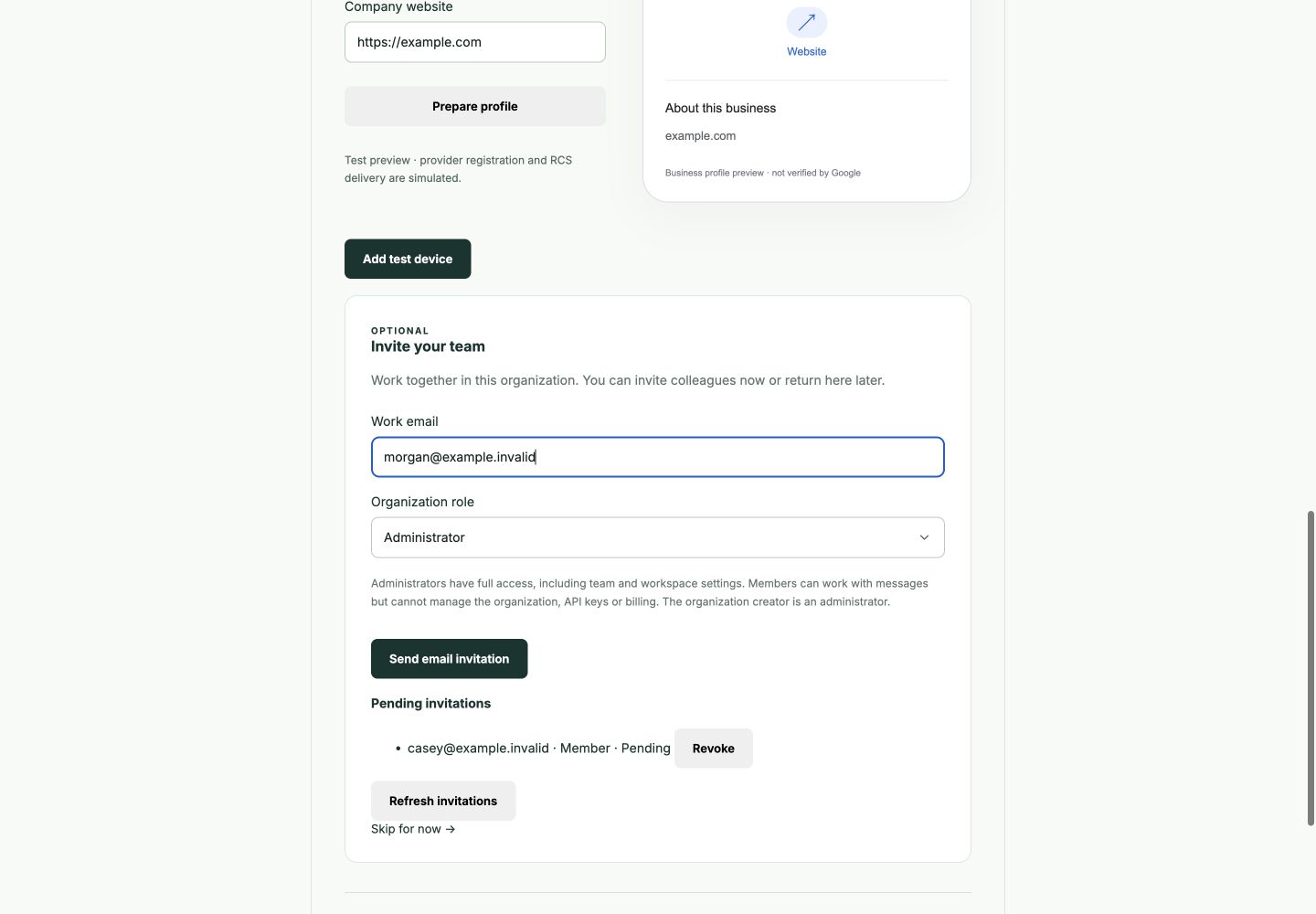
Optional invitation form and pending list in a local synthetic workspace. The identity provider is simulated. No email is sent.
Manage the team
The Team panel in Workspace settings is visible only to administrators. It lists current members and their roles, with pagination and a Refresh team action.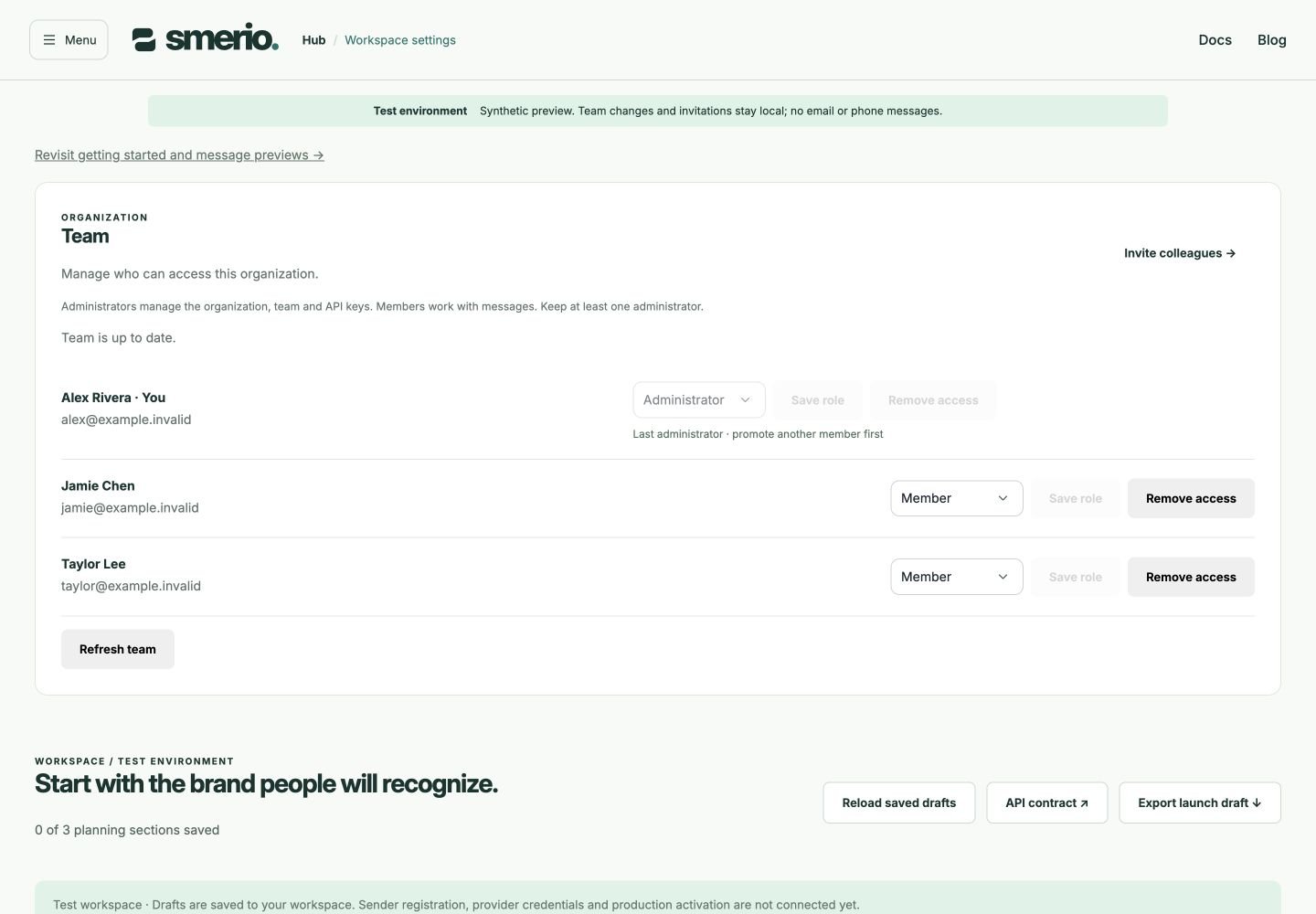
Running Team panel with synthetic members. These screenshots do not demonstrate hosted sign-in or changes to real accounts.
Change a role
- Find the person in Workspace settings → Team.
- Select Administrator or Member.
- Select Save role and review the confirmation.
- Confirm the change.
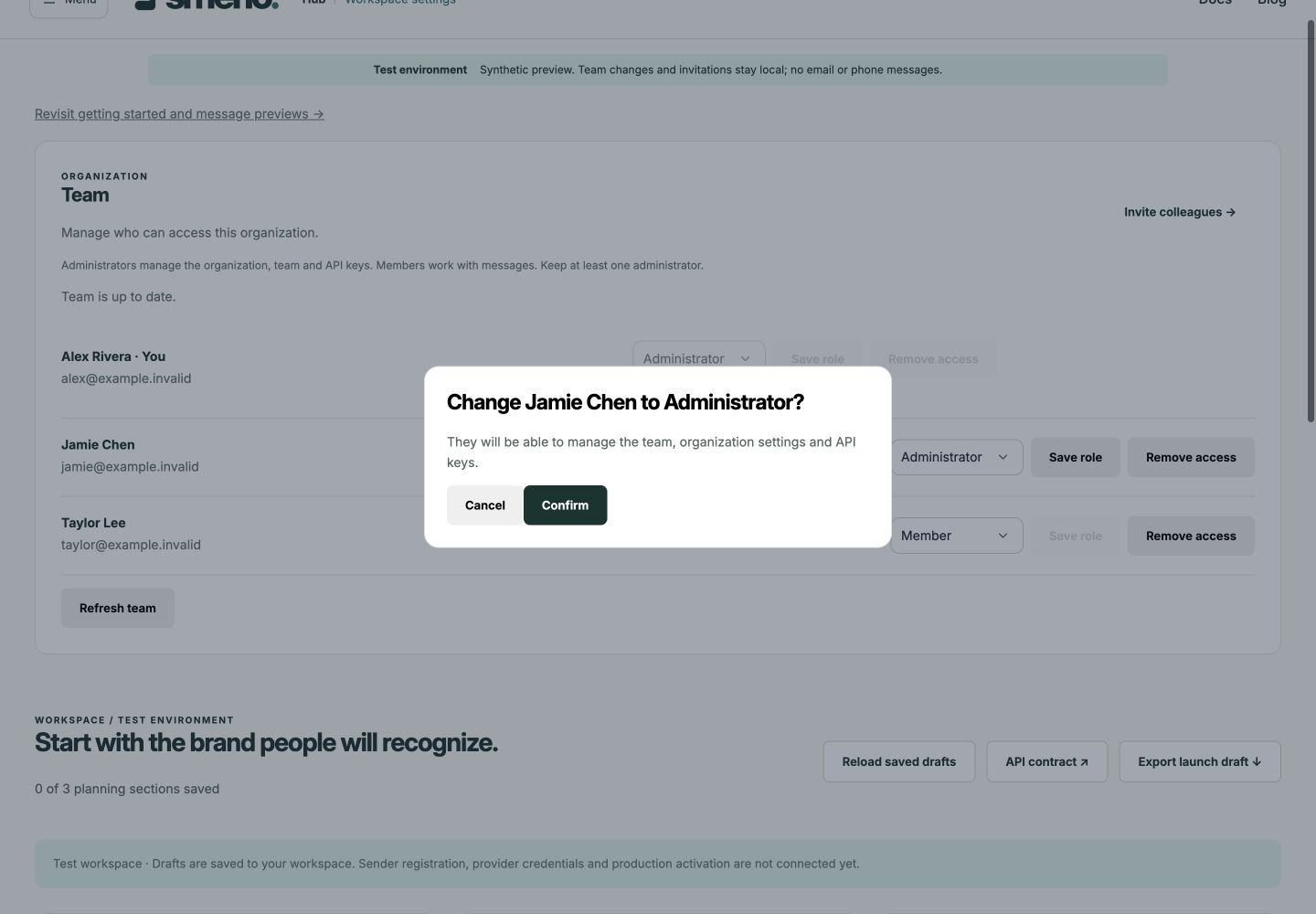
Review the person and the effect of a role change before confirming. Synthetic local example.
Remove access
- Find the person in Workspace settings → Team.
- Select Remove access.
- Review the confirmation and confirm the removal.
Keep an administrator
Every organization must retain at least one administrator. Smerio blocks attempts to remove or demote the last administrator, including simultaneous changes through the Hub’s team API. Promote another member before stepping down or removing the current administrator. A pending invitation does not count as an administrator. If you change your own role or remove your own membership, the Hub reloads to apply your new access.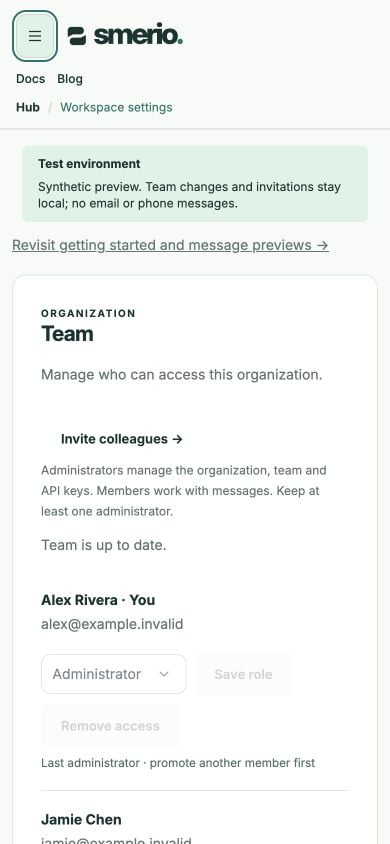
The last administrator's role and removal controls are disabled, including on mobile. Synthetic local example.
How access is enforced
Permissions are checked by the API using the current organization membership, so hiding a button is not the only protection. Members cannot bypass these checks by calling an administrative endpoint directly. Only Administrator and Member are supported. An unknown organization role is rejected. Team updates also check that the person’s role still matches the one shown when you started editing. If another administrator changed it first, refresh the team and review the latest role before trying again. API keys use their own limited scopes. They are not organization member roles and cannot manage team membership, even if they can access messaging endpoints.Troubleshooting
- Team is missing: check that you selected the intended organization and have the Administrator role.
- You cannot change or remove an administrator: promote another member first if this is the last administrator.
- The role changed while you were editing: select Refresh team and review the updated member list.
- A request fails or its result is unclear: refresh before retrying. A failed response does not always mean the provider rejected the change.