One menu
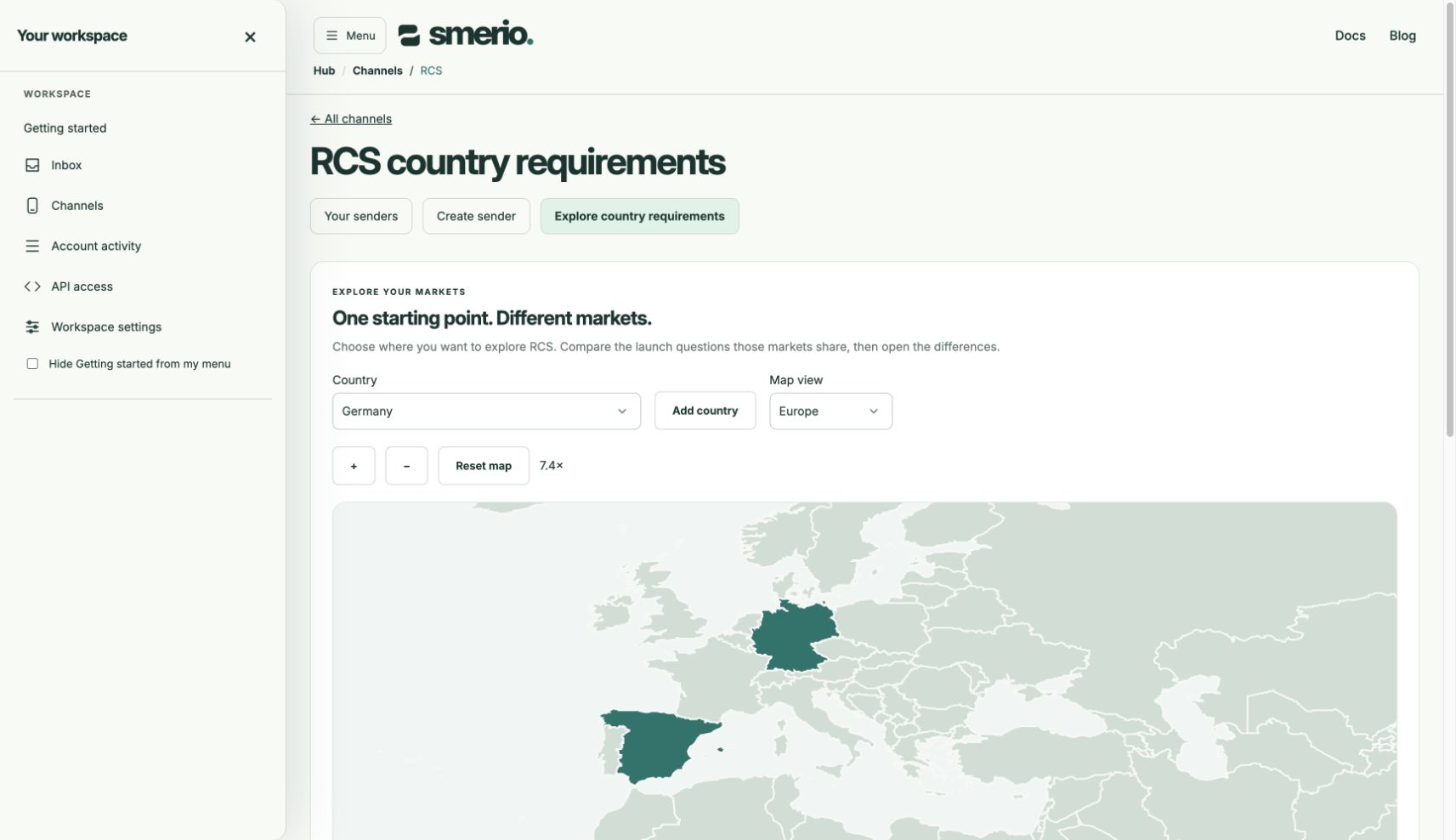
Select Menu to find these destinations after company setup:- Getting started for resumable setup. It appears first.
- Inbox for conversations across messaging channels.
- Channels for RCS, SMS and MMS configuration and messaging activity by channel.
- Workspace settings for organization configuration and the controls available to your role.
- Account activity for workspace operations and messaging events.
- API access for sandbox keys and integration identifiers.
- Organization for the current organization selector.
- Personal account for profile/security, account preferences and sign out.
Know where you are
Breadcrumbs show the current location, such as Hub / Channels / RCS. Select Channels to return to the channel list. Setup requirements and role permissions still apply to each destination.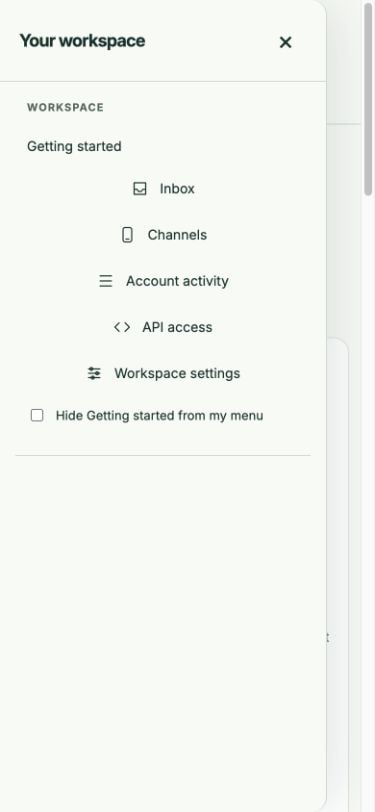
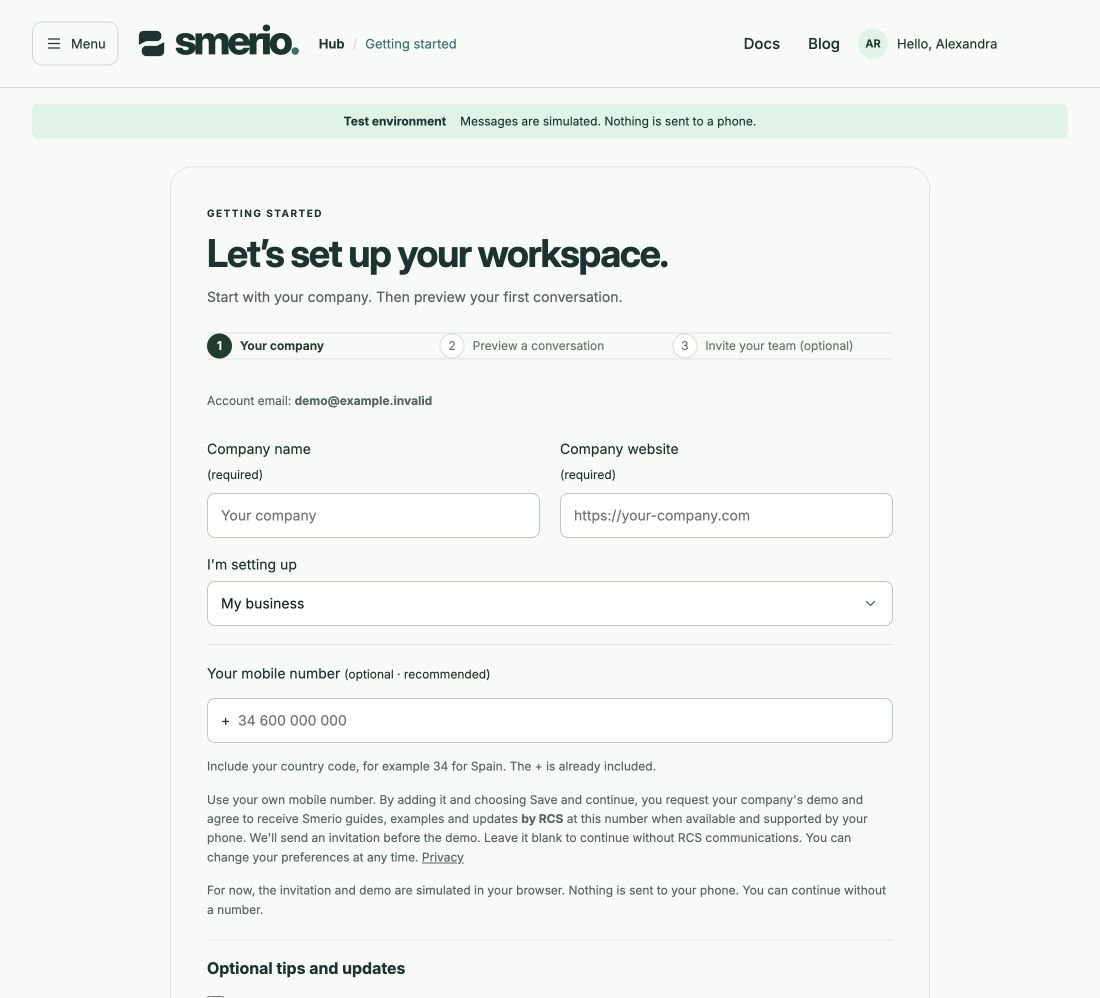
These screenshots show running local software with synthetic session data. Personal account actions are disabled in the screenshot fixture. They do not demonstrate a live sign-in or organization switch. Messages remain simulated.
Account preferences
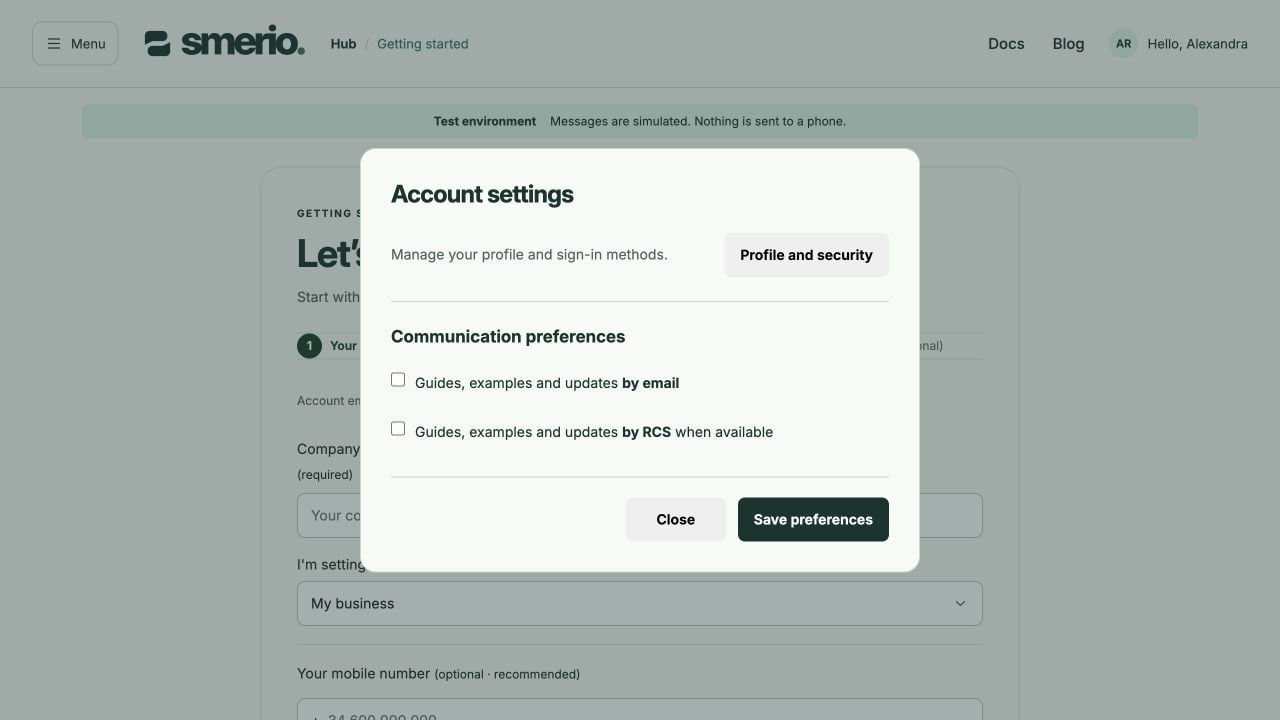
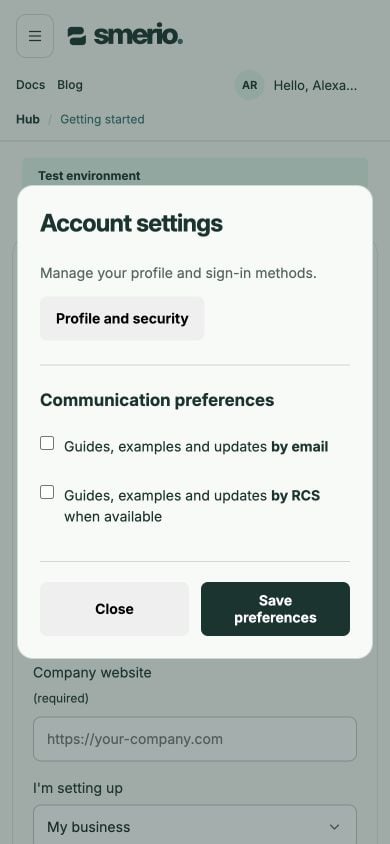
Open Menu → Account settings. Profile and security is separate from communication preferences. Use Save preferences to save your choices or Close to dismiss the dialog without saving. Both actions appear together at the bottom.