

Start from your website
Open Create sender, enter your business website and select Create test sender from website. If you saved a website during onboarding, it is already filled in. When your workspace has multiple brands, choose the brand you manage. Smerio reads public brand information and creates a sender for exploration. Missing descriptions and images use visible test placeholders. Contact email comes from the website or your account. Legal policies are not invented. Public brand images are resized and hosted for messaging. The Test markets field uses your saved countries, or Spain initially. Change the country codes before creation if needed. Spain was the initial test-market default, not an approval or a requirement to operate there. Creation connects incoming replies and delivery receipts. If you entered your own phone and explicitly consented to test invitations during onboarding, leave Invite my consented onboarding phone selected to invite it automatically. Otherwise, add an opted-in phone in Edit brand and test devices. Accept the invitation in Messages on that device. Use Inbox for real test-device messages when the connection and destination are allowed. Sandbox API keys let you explore payloads and simulated outcomes. They do not send to real devices. There is one website test sender per brand. Reuse it if setup is pending. If the website cannot be read, correct the URL or use manual setup. Missing contact details may also require manual setup.Mobile quick start
Mobile quick start

Register your sender
Under Create sender, expand Create a sender intended for production. Choose the workspace brand and enter the sender name, description, website and contact email. Add the brand color, logo, banner, privacy policy and terms of service. Use publicly accessible HTTPS URLs for images and policy pages.- Logo: 224 × 224 pixels, PNG or JPEG, up to 50 KB.
- Banner: 1440 × 448 pixels, PNG or JPEG, up to 200 KB.
Understand your sender
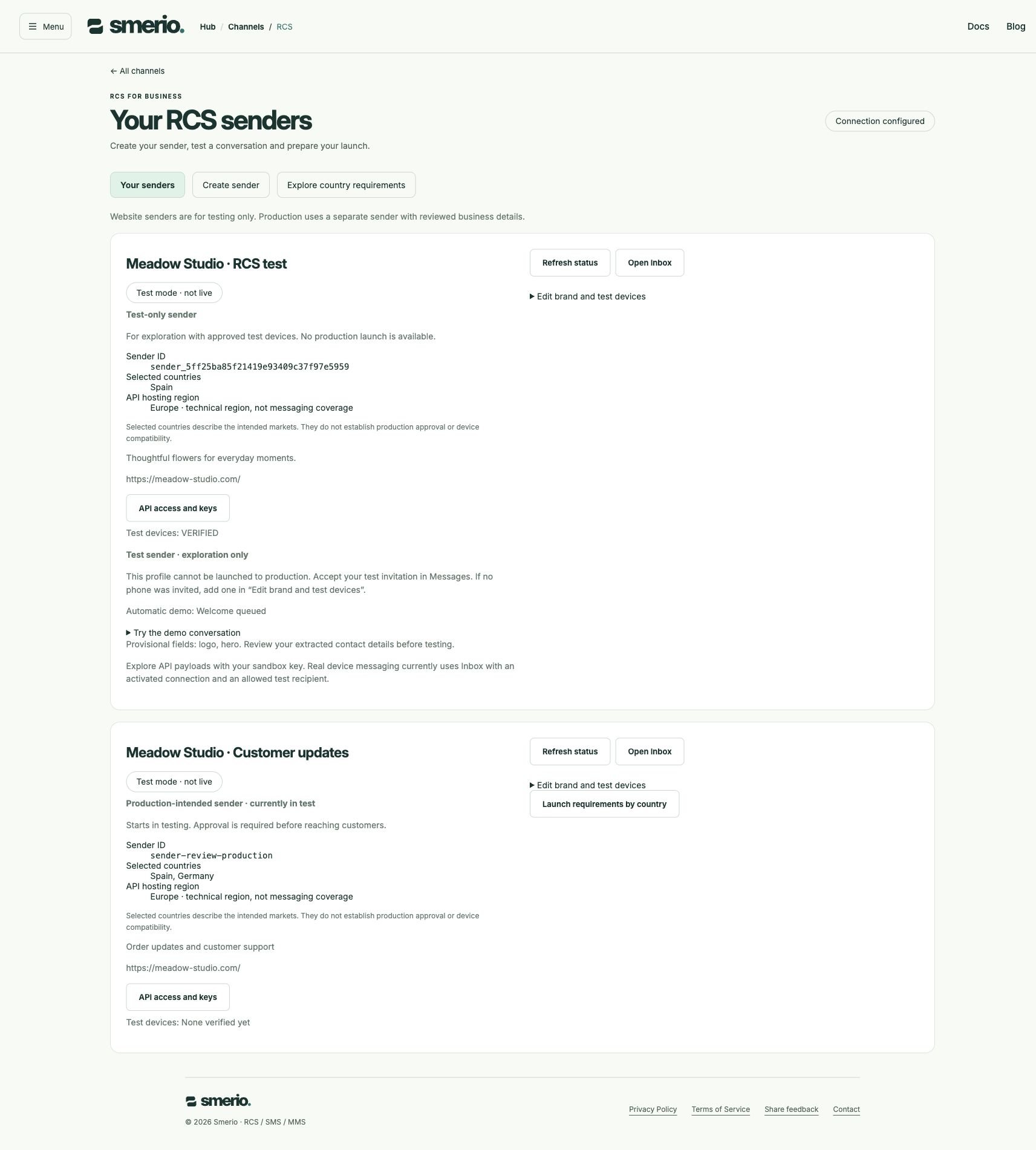
Each sender shows its name, Smerio sender ID, selected countries, API hosting region and test-device status. Europe in the hosting field describes where its API connection runs. It does not mean Europe-wide coverage. Test-only sender means no production launch is available, including the original imported pilot and website-created senders. Production-intended sender starts in testing and can later submit country requirements for review. Only this second type offers the launch dialog. Select API access and keys to manage workspace sandbox keys. Keys belong to the workspace, not the individual sender. Existing keys simulate messages and do not activate real-device sending.Test on a device
A sender marked Test mode · not live can communicate only with approved test devices. A device may need to accept a testing invitation. VERIFIED describes the test-device state. It does not mean the sender has been approved for production. Select Refresh status to read the latest sender and connection state. Once its messaging connection is active, use Inbox with the corresponding live sender. Simulated conversations remain available separately and do not send to a phone. A successful send request confirms acceptance. Delivery and read receipts are separate events. An incoming reply appears in the workspace Inbox when the receiving connection is configured.Explore the interactive demo
Enable the interactive demo when creating your website test sender. After your phone accepts the invitation and the connection is ready, Smerio queues a welcome menu. Account sending restrictions still apply. Welcome queued does not confirm phone delivery. Reply MENU or HOLA to open the menu. Explore reply buttons, a sample appointment, a rich card and a carousel. Sample actions do not make a real booking. Incoming messages and automatic replies are recorded in Inbox. Reply STOP, BAJA, PARAR or UNSUBSCRIBE, or select Stop automatic demo in the sender panel, to stop automatic replies. Pending automatic messages are cancelled. Messages already submitted cannot be recalled. A stopped demo does not restart when you send MENU. The demo lasts up to seven days and queues at most 20 automatic messages per device per hour. It applies only to the consented test device. Entering a phone number alone does not grant permission for invitations, demo messages or marketing.Prepare the launch
Use Explore your markets to compare countries, see shared questions and save markets for your next test sender. Manual setup also offers Check country requirements for the first country in its form. For a production-intended sender, open Your senders → Launch requirements by country. A dialog opens for that specific sender. Select its destination country and Load country questions. Complete the displayed questions, including how recipients opt in, the message use case, how they opt out and the verification contact. Additional country and partner fields appear when required. Select Save answers to submit the answers. When the brand and launch information are complete, Request production review submits the sender for review. This action does not grant approval. Availability remains specific to each country and operator, even if the overall sender has launched somewhere.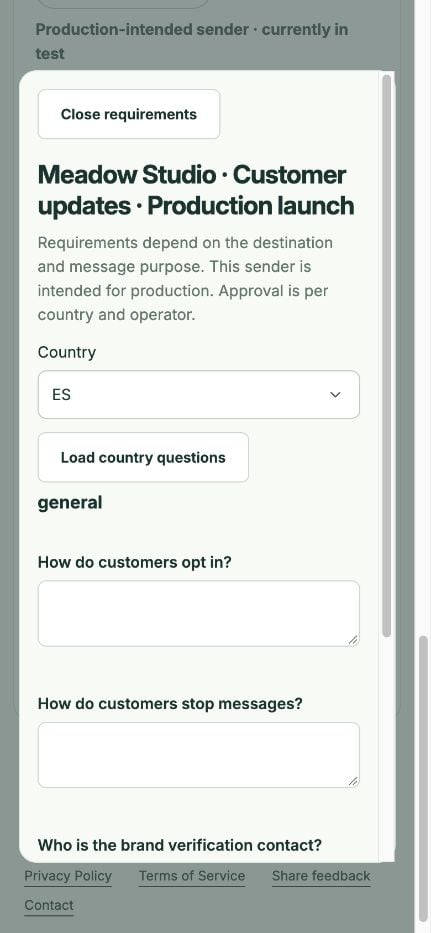
Incomplete setup
If setup reports SETUP INCOMPLETE or CONFIRMATION PENDING, refresh the status and contact support with the sender identifier. Do not create another sender to retry an uncertain submission. Smerio preserves the original operation to avoid duplicate registrations.API access
The management API uses the same workspace boundary as the Hub. Changes require a human administrator session withsetup:write. Read operations require management:read. Existing test API keys do not authorize live sending.
Creation requires an
Idempotency-Key header between 8 and 128 characters. Reuse the same key and identical body when checking an uncertain create request. Changing the body while reusing the key returns a conflict. Country and test-device arrays replace the previous list when updated.
See the current API contract for request fields and channel plans for sending content.
Usage and fallback
The usage panel counts delivery attempts recorded by Smerio. It does not display a supplier invoice or a final billable amount. A missing cost is unavailable, not zero. SMS fallback requires its own active sender. MMS remains unavailable until a supported destination and channel connection have been confirmed. A country questionnaire is a launch requirement, not a guarantee that every recipient in that country can receive RCS.Screenshots show running local software with synthetic data, captured on 1 October 2026. They verify layout and visible states, not hosted authentication or real phone delivery.
Maintain an existing sender
Open Edit brand and test devices to update the public name, description, contact information, assets, policies, countries or test-device list. Save with Save sender details. Blank brand fields preserve the existing value. Changing the test-device list replaces it and can invite newly added devices. Open Launch requirements by country on a production-intended sender to inspect the reported state for each country and operator. Approval in one market does not approve every destination. Changes to an approved brand may require another review. The website endpoint acceptsbrand_id, optional website, countries, invite_my_phone and demo_enabled. The invitation uses only your own consented onboarding phone in this workspace. Omitting the website uses the saved onboarding value. It requires the same administrator session and idempotency header as manual creation. The response identifies test_only, source_website and any provisional fields in defaults.