

Test conversations are labeled inside the selected chat. Their messages stay in the workspace. Real conversations require an activated sender and enabled sending. Existing test history is never relabeled as real traffic.
Fit the Inbox to your window
The Inbox fills the available window. Scroll inside the conversation queue, message history or contact panel to see more without moving the whole page. Filters and Message options start collapsed to leave more room for conversations. Select Expand inbox to hide the Hub navigation and give the Inbox more space. Select Exit expanded view or press Escape to restore it. Your current conversation and unsent draft stay in place. A test notice appears only when the selected conversation is a test conversation.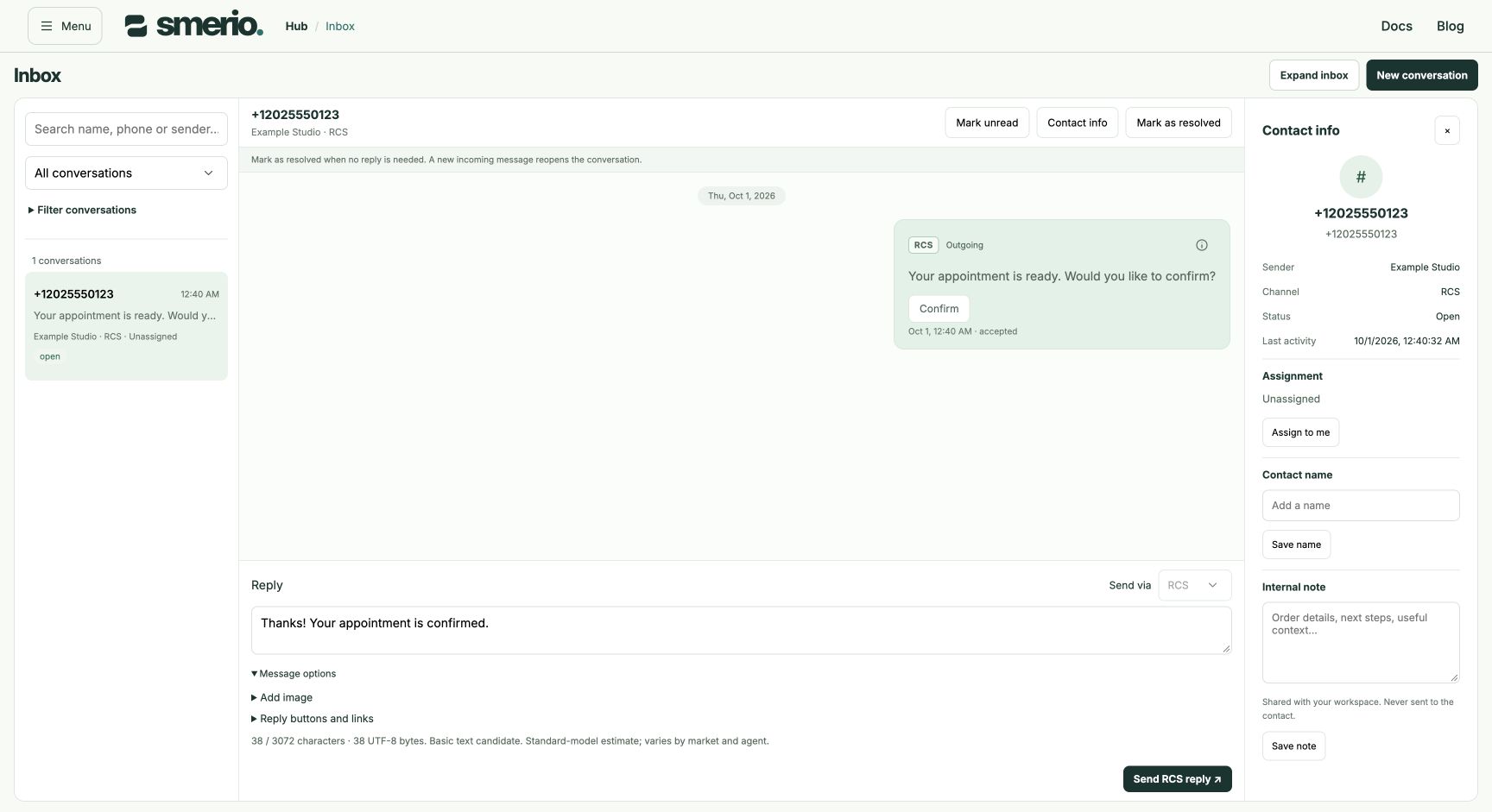
Inbox at a laptop viewport, using synthetic contacts and messages.
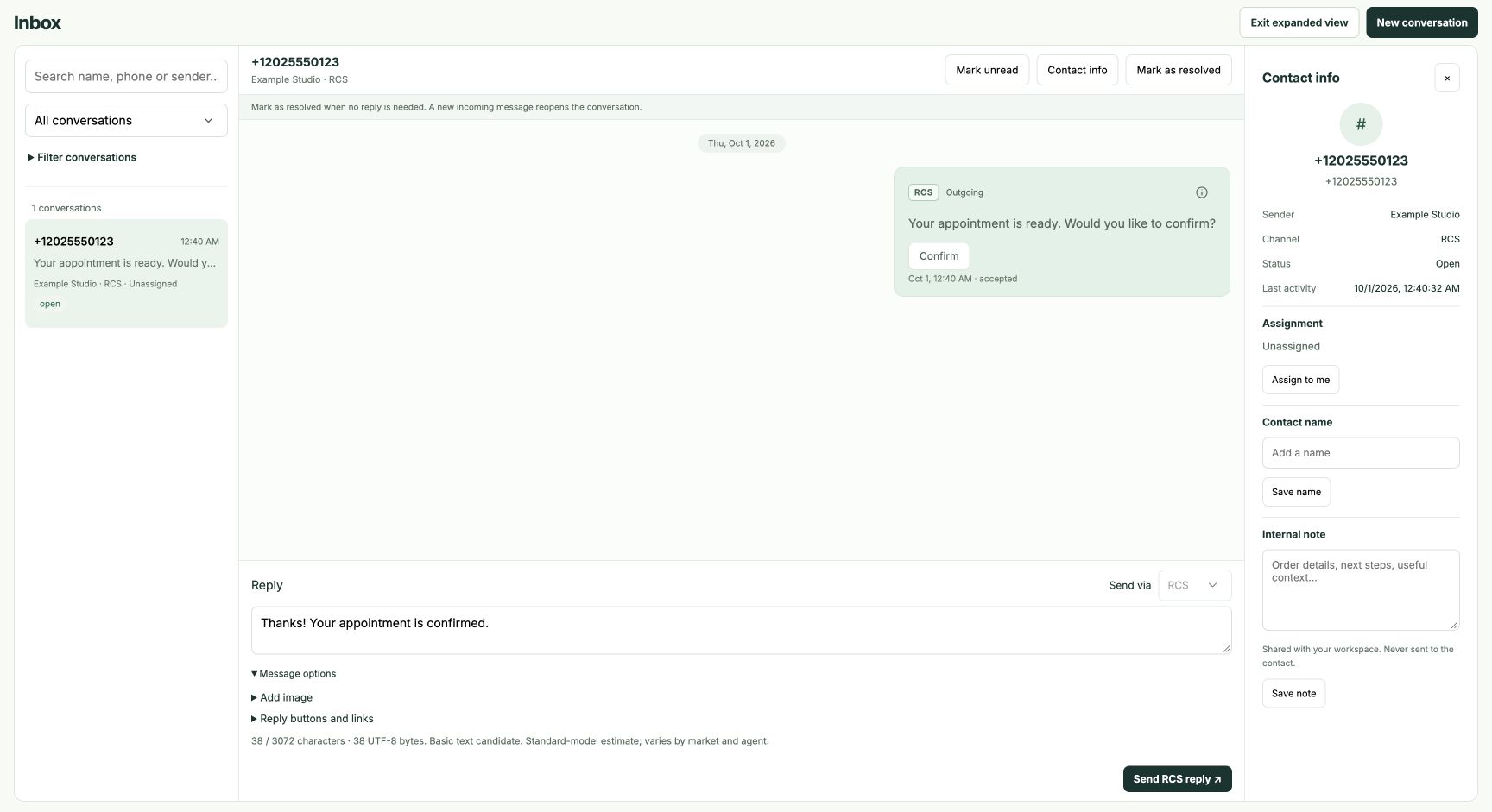
Expanded Inbox with the surrounding navigation hidden.
Start a real conversation
Select New conversation, keep Send to a phone selected, and choose a connected RCS or SMS sender. Enter the contact’s international phone number and first message, then select Send message. A test RCS sender can reach verified test devices only. Your workspace must be enabled for the recipient. The message appears immediately with its current state. Accepted and pending mean the send is still being processed. Delivered and read require delivery events. SMS reception needs a receive-capable number. An alphanumeric SMS sender can send messages but cannot receive replies.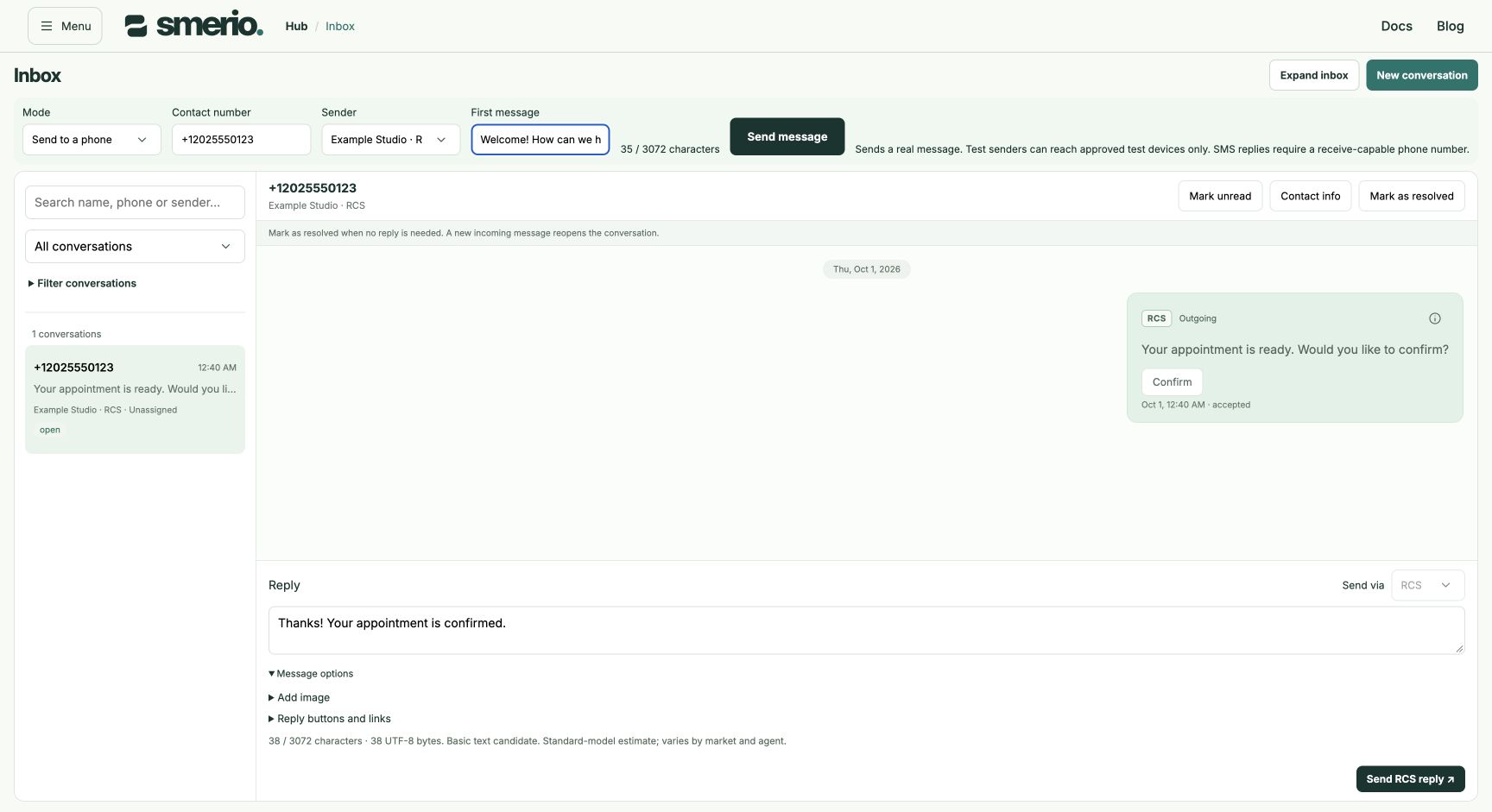
Starting a conversation in running local software with synthetic data. No external message is sent by this fixture.
Create a test conversation
- Complete your company setup in Getting started, then open Inbox.
- Select New conversation, then choose Simulate incoming message under Mode.
- Enter a synthetic test contact number in international format, such as
+12025550123, choose a test sender and enter an incoming message. - Select Create test message and open the conversation.
Compose a reply
In a test conversation, write your reply and keep RCS selected under Send via. Choose a Simulated result, then select Send RCS test reply. The result options let you explore delivered, read and failed states without contacting a device. Open Message options for images, reply buttons, action previews and message classification. The composer supports:- Add image: enter an HTTPS image URL and image description. File uploads are not available. Use an image you are authorized to share.
- Reply buttons and links: add up to four quick replies, HTTPS website links or call-number previews. Enter a label, then the reply identifier, destination URL or phone number. Use Move up and Remove to arrange the buttons.
- Message preview: review the content before submitting the test reply.
https:// URL can be opened from saved messages in a new tab. The original text is kept. URLs in the message preview are inactive, and the Inbox does not load a website preview automatically. Other schemes and bare domains stay as text. Use a full HTTPS URL separated from nearby words. These text links are separate from reply buttons.
For Call number, use + followed by 8–15 digits, including the country code, without spaces or extensions. The number is saved with the message but is not checked for ownership or availability. Call buttons show Preview only in both the composer and saved history: they do not open a dialer, place a call or record a customer action.
Quick replies, website buttons and call buttons are inactive in the message preview so you can review the content without performing those actions. After a test reply is saved, website links can be opened deliberately and quick replies can simulate a customer response. These controls do not establish how an RCS client or provider will display or handle a delivered message.
Reply in a live conversation
A live conversation does not offer simulated outcomes or a customer-response generator. Its reply uses the conversation’s connected RCS or SMS sender. The channel is fixed for that conversation. A successful submit means accepted for sending, not confirmed delivery. RCS replies support text, quick replies, website and call buttons, and image cards through Message options. An image with text or buttons is sent as a rich card. Image descriptions used as card titles are limited to 200 characters and captions to 2,000 characters. SMS replies contain text only, up to 1,600 characters. Cards and carousels can also be sent through the structured API and appear in history. MMS replies remain unavailable without a configured route. See Channel plans and fallback. When RCS fails and the explicit SMS fallback is delivered, the history shows Delivered via SMS fallback and the exact SMS version. Open Message details for each attempt and its events. Pending or unknown outcomes do not trigger an automatic resend.Live RCS reply controls exercised with synthetic data in a local fixture. This is not a screenshot of device delivery.
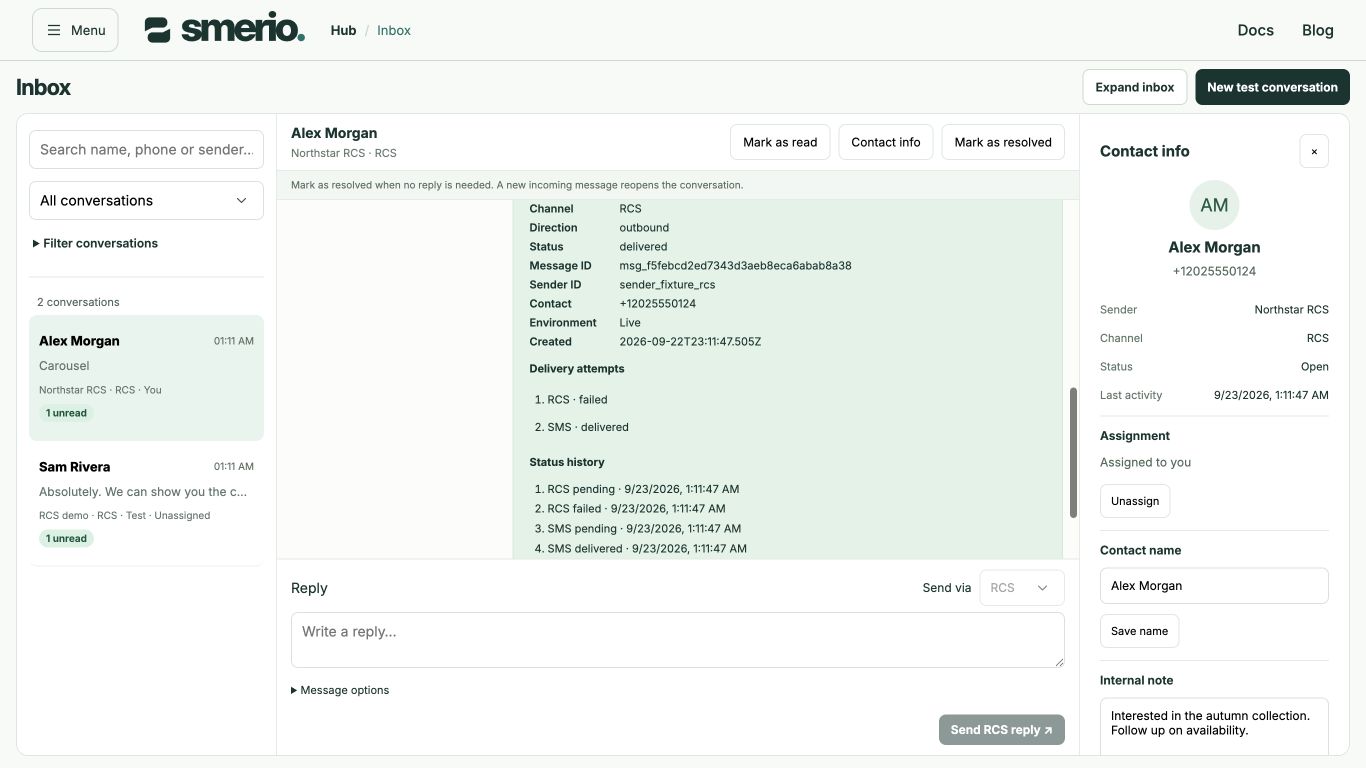
Normalized attempt history using synthetic receipts.
Find and manage conversations
Search by contact name, phone number or sender. Under Filter conversations, narrow the queue by sender, unread messages or assignment. The status selector switches between all, open and resolved conversations. Clear filters restores the full queue. The conversation count shows loaded results. Use Load more conversations when available. Use Mark as read or Mark unread to manage a shared team queue. Opening a conversation keeps its read state unchanged. These actions are shared across your organization and do not send a read receipt to a phone. Resolve a finished conversation or reopen it when needed. A new incoming message reopens the conversation. Conversations and submitted messages are shared within the organization and persist across reloads. Unsent drafts stay in browser memory while you switch conversations. Reloading clears those drafts.Keep the contact context nearby
Open Contact info to see the phone number, sender, channel, status and last activity alongside the history. On mobile, close the information panel to return to the conversation.- Contact name: add a recognizable name for this conversation and select Save name. Search also finds this name.
- Internal note: keep order details or next steps in a shared note, then select Save note. The note is visible to your organization and is never sent to the contact. There is one editable note per conversation. A later save replaces the previous version.
- Assign to me: take ownership of the conversation. Unassign returns it to the unassigned queue. Use Assigned to me or Unassigned to find your work. Choosing another teammate from a directory is not available yet.
Inspect a message
Use Message details to inspect a message’s content, identifiers and available events. Test events describe a simulated result. Live messages show normalized delivery attempts and events. Raw transport payloads are not exposed in the customer Inbox. Use these details to understand the sequence of a conversation and investigate an unexpected test result. Do not share internal identifiers or customer content in public screenshots. Open Inbox.Navigation
Open Menu → Inbox from any workspace section. See Navigate the Hub for organization and personal account controls.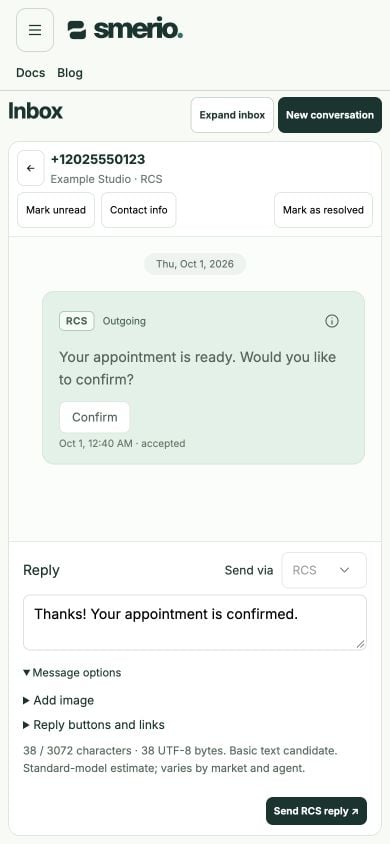
Mobile conversation with the reply controls inside the available window.
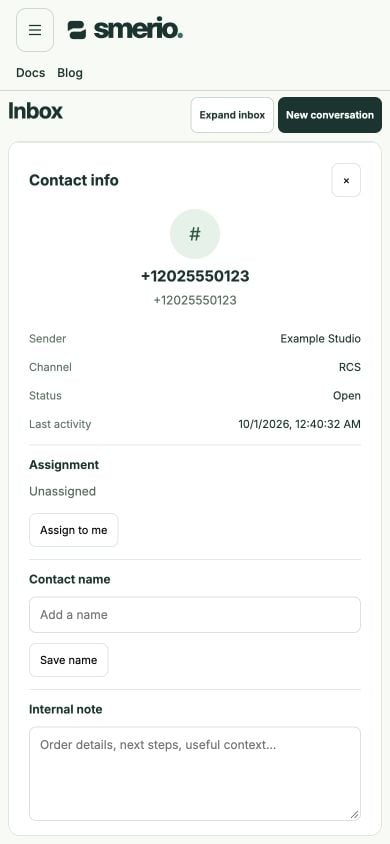
Contact context on mobile, using synthetic data. Scroll within the panel to reach all fields.